

Turn An Old Amazon Fire Tablet Into The Smart Home Hub Of Your Dreams
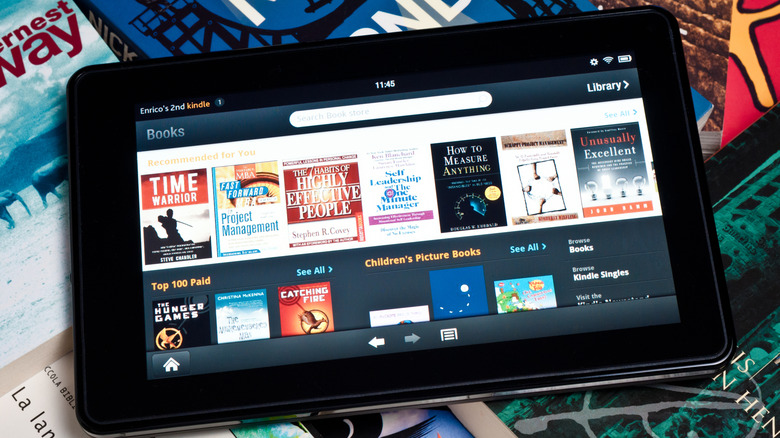
Having a smart home is nice, but sometimes, things don't work quite right. Whether the devices aren't reacting to your vocal commands or you want something that allows you to quickly find and adjust settings, having a smart home control hub is useful. This is especially true if you start to collect some of the smart home gifts you'll actually use, and you're tired of balancing multiple apps and settings to get everything working just right.
Thankfully, if you have an old Amazon Fire tablet, you don't need to go and buy a brand new option. With a few adjustments, you can replicate a more expensive device. It might even be the best smart home system for you, thanks to its robust technology integrations.
You don't need much to set it up, but there are some things to keep in mind for this to work. For one, all of your devices must be on the same internet. So, for example, if you have a 2.4 and a 5 GHz network, all the devices need to be on the same one. Additionally, you will want to make sure your tablet is fully updated. For the Device Dashboard feature that your hub depends on, OS 7 and up is required. This means devices from before 2018, which would be anything older than an Amazon Fire 7 or an Amazon Fire HD 8, won't be useful for this hack. All devices, including your tablet, will need to be on the same Amazon account as well.
How to turn your Amazon Fire into a smart hub for your home
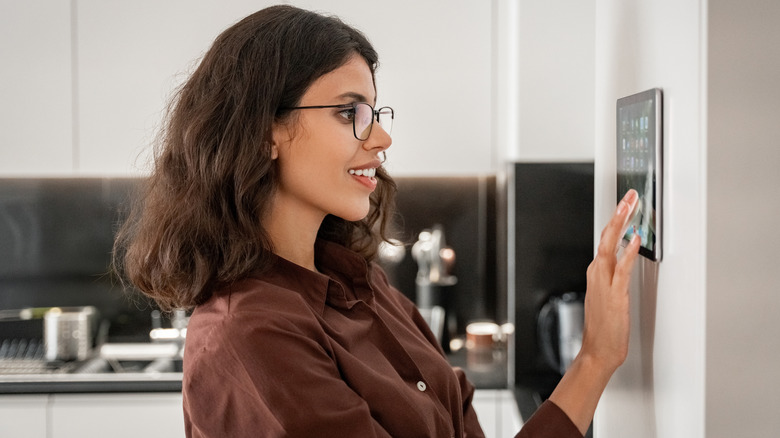
To start, go to the Device Dashboard, which is a small button near your navigation panel at the bottom left of the screen. You will want to add all of your smart accessories to the favorites list. You do this by clicking "Edit," then "Add Favorite," and then hitting the star symbol next to the items you own. If it doesn't pop up under the "Add Favorites" category, simply scroll down to the "Categories" section.
The steps are a little different for other smart devices. You still go to the Device Dashboard, however, this time, you will look at the top right of the page, where it says "Manage Devices in Alexa App." From there, you will hit the plus button on the top right and then click "Add Device."
Of course, while this allows you to control all of your devices and accessories from one screen, it's hardly a smart hub. To achieve that, you want to make it always easily accessible and ready to go when it's needed. After all, if you have already started to make your house a smart home with an assistant, you'll likely use that more often, but once in a while, you'll need an actual app. Consider keeping the device somewhere in the main area of your home, perhaps on a stand or hung up on your wall. You'll also probably want it somewhere where you can easily plug it in.