

Use An Old Smartphone To Fix Spotty Home Wi-Fi
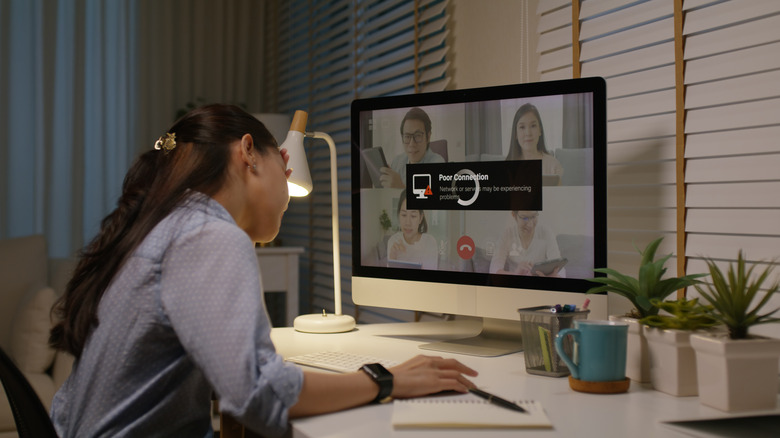
You drop into your comfy chair and put on your work smile to attend another Zoom meeting that could've been an email. But your internet starts acting up. Or, you might be trying to lull yourself to sleep while scrolling through TikTok, but the videos might start buffering. In either scenario, if you're relying on your cellular data plan, you have the option of switching over to your home's Wi-Fi. However, if you're already connected to the latter, check whether people are secretly stealing your Wi-Fi. If not, you'll need a dedicated device to transmit strong signals in the "dead zones" around your house. While you can invest in extenders or mesh devices to get stronger Wi-Fi at home without an ethernet cord, there's an easier and more economical way to fix spotty reception. Just dig out your old Android smartphone and turn on both its "Mobile Hotspot" and "Wi-Fi" to turn it into a repeater.
This simple act will turn it into a bridge between your router and device. It'll draw in radio waves from the former and push them back out toward areas where the connection is poor. However, there are a few caveats to this hack. For starters, your Android device shouldn't be too old. Otherwise, the "Wi-Fi" button will automatically be disabled as soon as you turn on the "Mobile Hotspot." Moreover, be prepared for a slight downgrade in the connection. You can still hold video calls, stream your favorite shows, and doom scroll social media, but the Internet will be a little slower in comparison to devices directly connected to a router.
How to turn your old smartphone into a Wi-Fi repeater
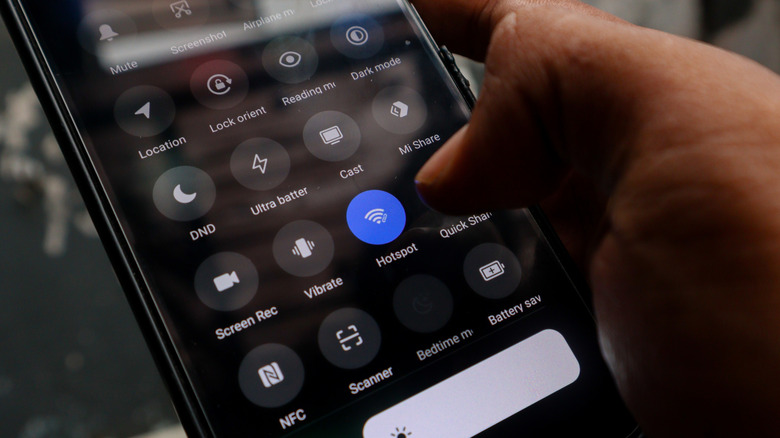
Turn on your Android smartphone and plug it into a charger. Also, don't turn on the "Mobile Data," as this will defeat the entire purpose of this activity. Now, go to "Settings" and turn on "Wi-Fi." Then, connect it to your home's Wi-Fi network. Once done, look for the "Personal hotspot," "Mobile Hotspot," or "Hotspot & tethering" option. You'll generally find this under the "Mobile Network" or "Connections" tab, but the exact location will depend on your device. In case you're having difficulty finding it, use the "Search" bar at the top and type in "hotspot."
Next, set up a device name and a strong password. You'll find these options within the "Hotspot" menu. Pick a name that'll easily help you recognize it in a jiffy, such as "Wi-Fi repeater" or "My home's dead zone extender." Afterward, bring forth the device you'd like to improve the internet connection of and turn on its Wi-Fi. But instead of connecting to your router, pick the Android device. Enter the set password, and you should now be able to have a decent connection in the dead zones of your house.
Tips and tricks to use your makeshift Wi-Fi repeater without issues
To ensure you get a stronger Wi-Fi signal even in your backyard, place your Wi-Fi repeater midway between your router and the area with poor reception. Run a few experiments to hit the best spot between the two. You can even rely on Internet speed testing apps and sites, like Fast.com and Speedtest by Ookla, to help you find a spot faster. Another tip is to avoid using the internet on the phone, doubling as your extender. You don't want to overload the connection, or you'll be back to square one.
In case the speed is too bad (think 3G when your router is geared to offer 5G or 6G performance), go to the "Hotspot" settings on your Android device again. Look for "Speed and compatibility" or something similar and pick either 2.4GHz or 5GHz. In certain cases, you can pick both as well. This will ensure you don't run into issues while using your makeshift Wi-Fi extender to connect to different kinds of devices. While at it, disable the "Automatically turn off personal hotspot" toggle button. So, even if you don't connect a device immediately, the extender doesn't stop working after a few minutes.